Understanding Different Stages of a Study
Last updated: May 21, 2026
Studies move through several different statuses during their lifecycle. Each status controls what actions are available, whether participants can access the study, and whether edits can be made.
1. Draft
When a study is first created, it begins in Draft status.
In this state:
You can fully edit your study guide and screener
The upper right-hand corner will show a Continue button
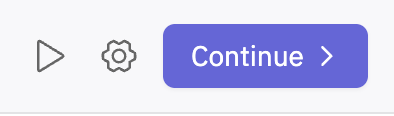
Selecting Continue moves you to the recruitment setup step
After recruitment is set up, you can publish the study.
2. Published
Once you select Publish, the study status changes to Published.
In this state:
Participants can access and complete the study
The study guide and screener become locked for editing
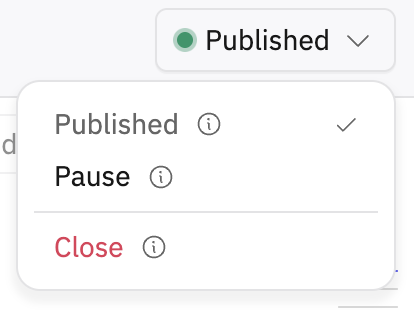
The upper right-hand button changes from Continue to Published
Selecting the dropdown arrow next to Published will show additional status options
The dropdown includes:
Published
Pause
Close
Tip: You cannot edit the study while it is published. If you need to make changes, you must first pause the study. See more below!
3. Paused
The Paused status temporarily stops new participants from entering the study.
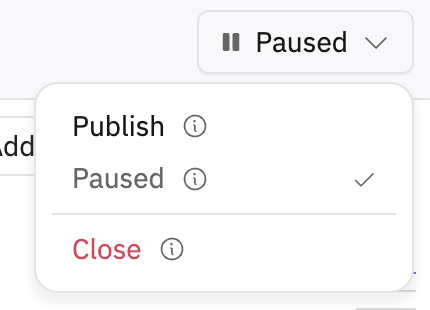
In this state:
New participants cannot start the study
Ongoing interview sessions are not interrupted
You can make edits to the study guide and screener
You can toggle the study back to Published when ready
This status is helpful when you need to quickly update questions, revise screeners, or make adjustments during fielding.
4. Closed
The Closed status permanently ends the study.
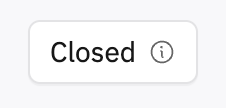
In this state:
The study can no longer be edited
The study cannot be republished
Recruitment is finalized
Any applicable recruitment refunds are automatically processed
When closing a study, you will be prompted to acknowledge the action before it is finalized.
If you later decide you want to continue the study, you will need to:
Duplicate the closed study
Relaunch the duplicated version as a new study
Closed studies cannot be reopened directly.
Note: Automatic Closure After 30 Days
If a study remains open and is not manually closed, it will automatically close after 30 days.
Once auto-closed, the same closed-study rules apply:
The study cannot be reopened
Recruitment is finalized
You would need to duplicate the study to continue running it
Hope this helps! If you have any further questions, please reach out to our team at support@outset.ai or via chat.