Using Outset's MCP
Last updated: May 28, 2026
Outset’s MCP supports most functions available natively in Outset, including project and study creation, recruitments, skip logic, and publishing.
Setting Up Your Connector
Step 1: Add Outset to the available list of connectors.
If you're on a Team or Enterprise plan, a workspace admin will need to complete this step.
Here's a short video outlining the steps.
To follow along, please see detailed steps below:
Navigate to the connectors page, click ‘Add’ > ‘Custom’ > ‘Web’ and enter the following:
Name: Outset
Click ‘Add’ to make Outset available to your workspace.
Note: The connectors page is called different things depending on your platform: Connectors in Claude, Apps & Connectors in ChatGPT, and MCP Servers in Cursor.
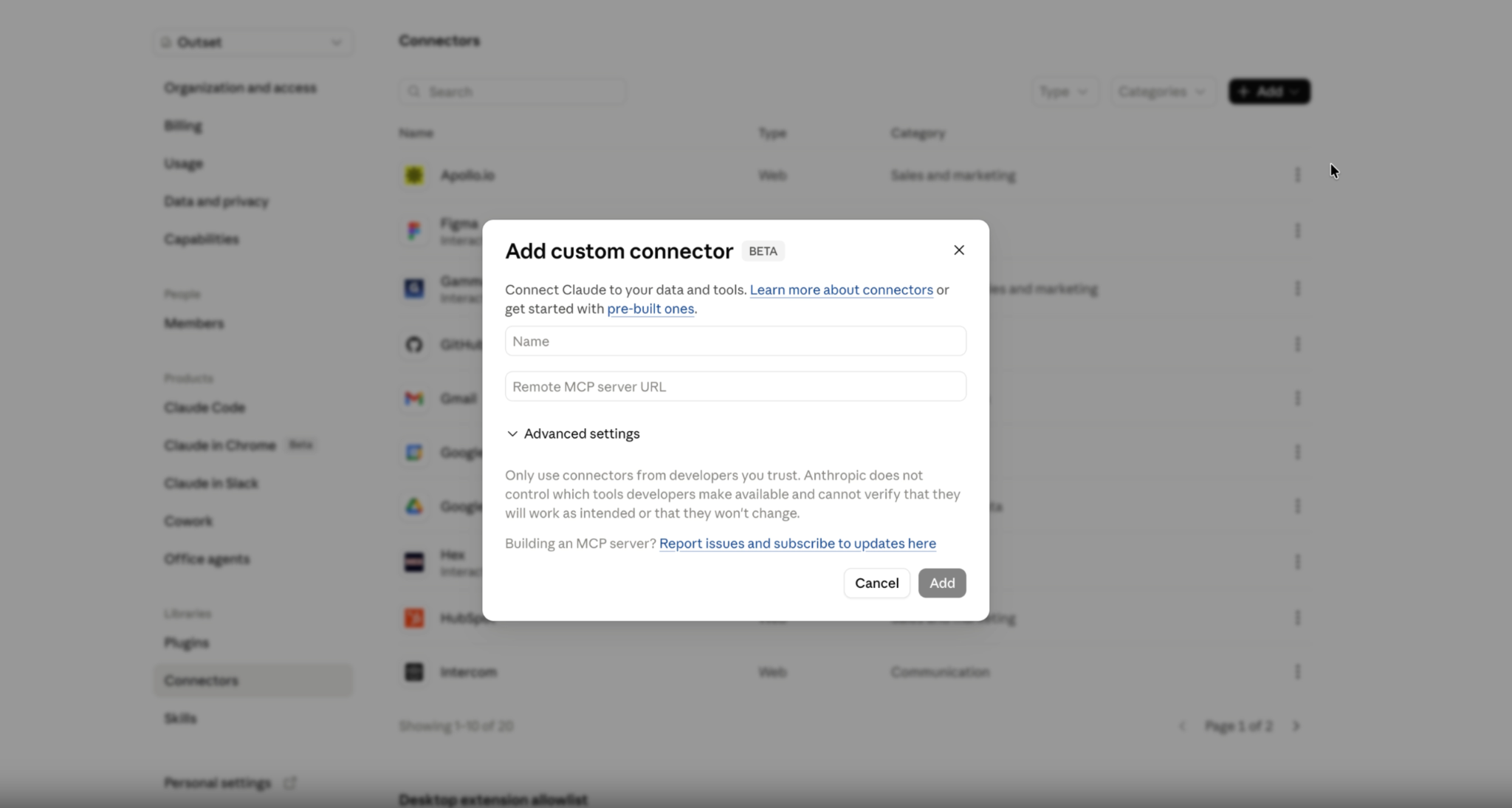
Step 2: Connect Outset MCP
After Outset's MCP connector is added, it will appear in your connectors page once your admin has enabled it. Search for "Outset" and click Connect.
Here's a short video outlining the steps.
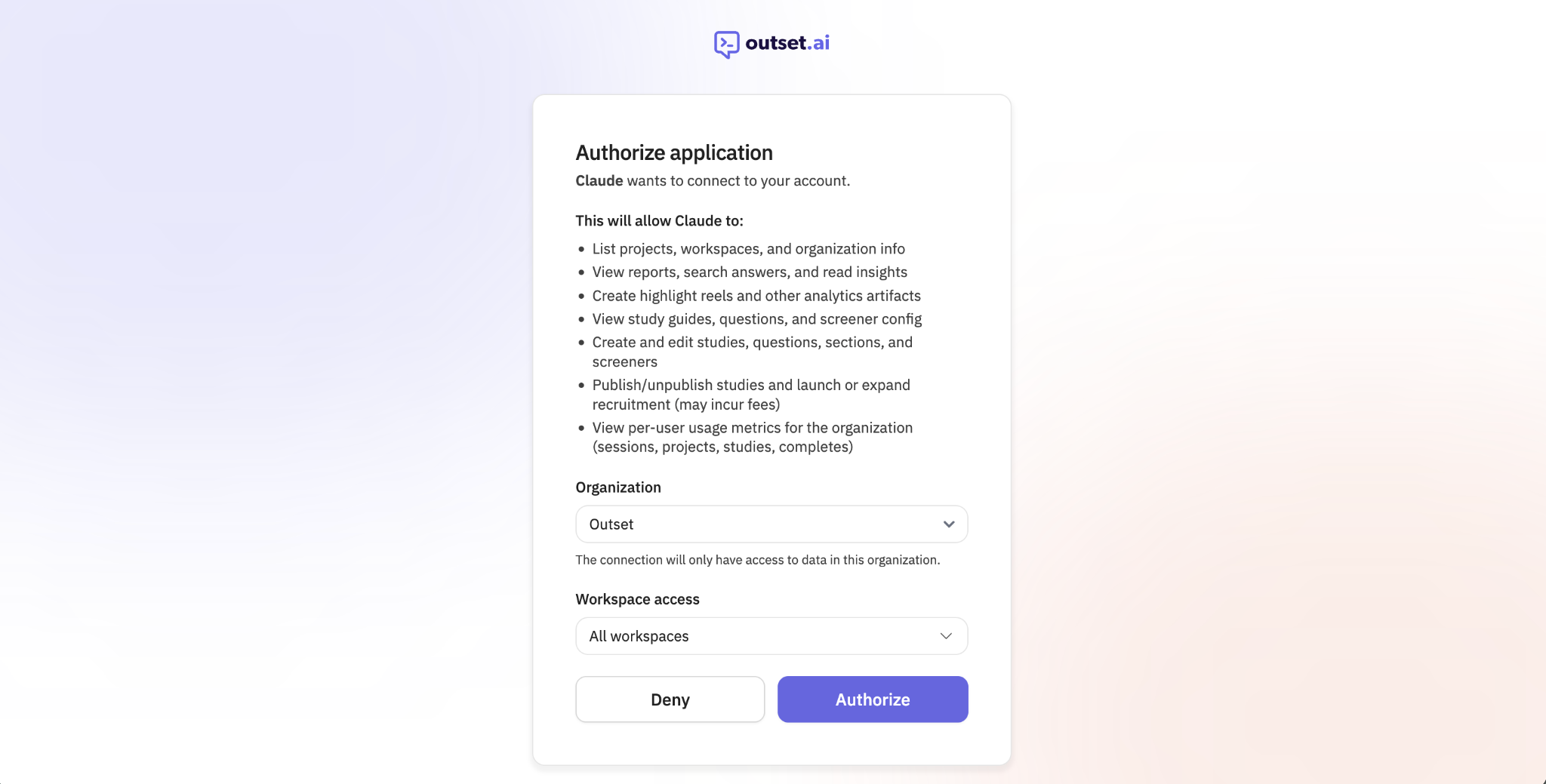
You will be prompted to authenticate then authorize access to your Outset data. Follow the steps of the pop-up to authorize. You will need to log into or already be logged into the Outset platform.
The connectors page is called different things depending on your platform: Connectors in Claude, Apps & Connectors in ChatGPT, and MCP Servers in Cursor.
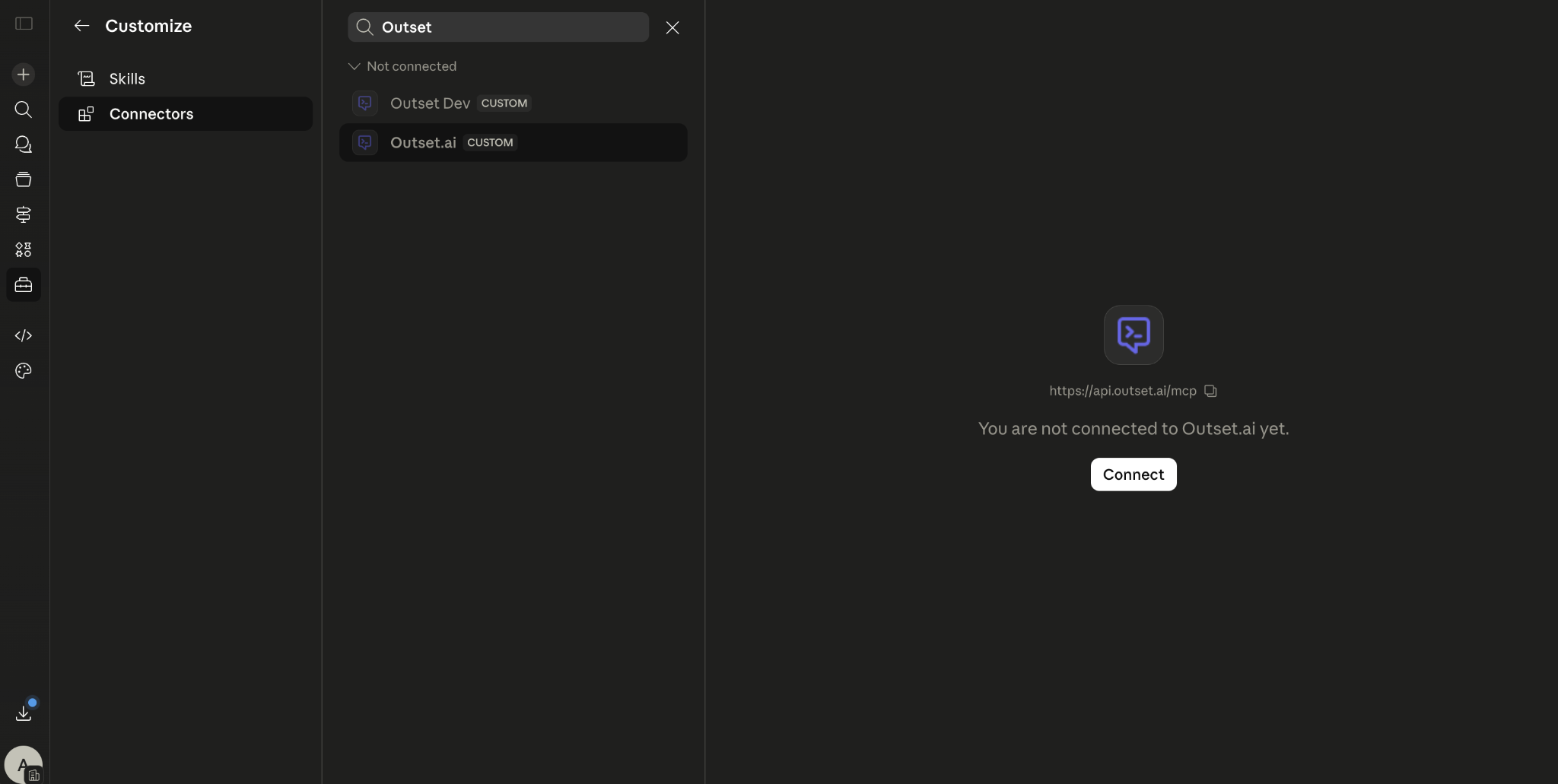
Authorize the connection and, if applicable, which Workspaces' data should be available to your connected platform/AI tool.
Once connected, navigate to ‘Chat with Outset’ in the left-hand-side navbar. You can chat directly with your Outset data on this page!
What can you do with Outset’s connector?
Ask about a specific study's findings, compare results across projects, filter by metadata, or get a high-level view of trends across your entire organization. Outset's MCP has a bird's-eye view of your research data.
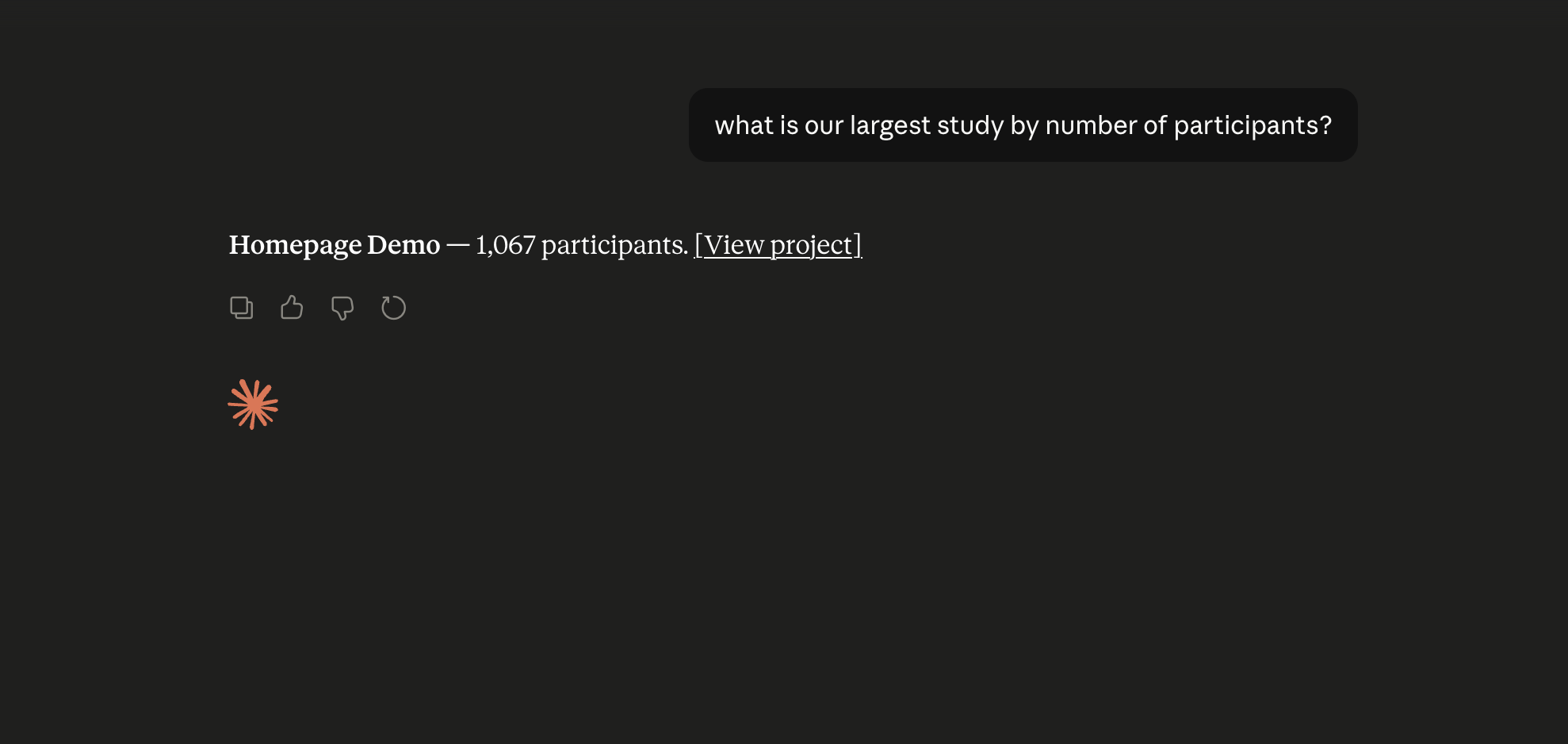
You can also manage your entire research workflow directly via Outset's MCP, no need to switch back to the Outset dashboard.
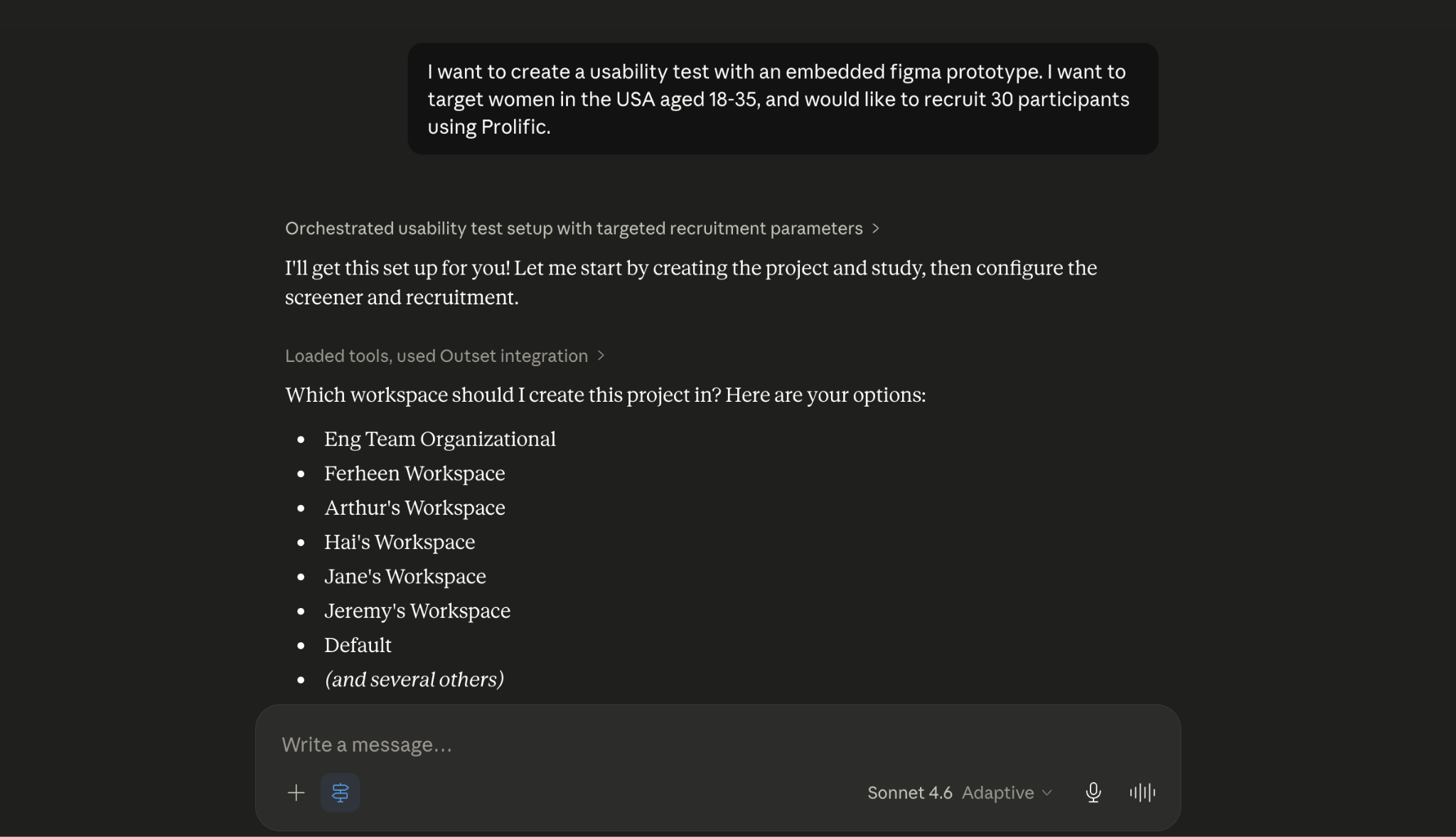
Create new projects and studies from scratch, design your discussion guides, screeners, and questions, then publish when you're ready.
Example Use Cases
Some great use cases include...
Analyze findings across studies
Ask your AI assistant to pull themes, quotes, and insights across multiple studies at once. For example: "What have we learned about onboarding friction across our last five studies?"
Build a discussion guide from a brief
Upload a research brief (e.g. a PDF or word doc) and ask Outset's MCP to write your guide based on it, then publish directly from your AI platform.
Monitor live study progress
Ask for a real-time status update on any active study: completions to date, target sample, and estimated finish time.
Query transcripts and findings
Dive even deeper into your interview transcripts, Topline summaries, Insights page content, and Visual Intelligence findings into your AI tool of choice without leaving your workflow.
Create and launch a study end-to-end
Describe your research objective and target audience, and Outset's AI will build the guide. From there, configure recruitment via third-party panel or self-recruit, and launch all from within your AI platform.
Outset MCP FAQs
What does Outset's MCP support today?
Outset's MCP supports the full study lifecycle and data querying without opening the Outset dashboard.
Creating new projects and studies from scratch
Designing discussion guides, screeners, and questions
Publishing studies when ready
Querying data across any project to surface insights and analyze findings
What are the current limitations of Outset's MCP?
Pulling raw results — such as CSVs, transcripts, video data, PowerPoint reports, or reporting downloads. These results are currently available for download directly from the Outset platform, with API capabilities coming soon.
Uploading images or stimulus files — such as a concept image (.jpeg/.png) or video (.mov) to a question via MCP. You can still upload your stimulus files directly in the Outset dashboard.
Initiating actions on your AI platform — Outset can't push a signal to your agent when something happens (e.g., when a study completes). Any automation needs to be initiated from your side.
The MCP is pulling in a lot of data. Can I scope it down?
By default, the MCP looks at all data you have access to within your org. To target a specific project or study, define it explicitly in your prompt. For example: "Only look at Project X."
My organization has SSO, how do I set this up?
Your login method for MCP mirrors however your org is set up in Outset. If your org uses SSO in the platform, you'll authenticate via SSO when connecting the MCP. If your org uses username and password, that's what you'll use for MCP as well. Access permissions are the same as if you were logging in directly to Outset.
I don't see Outset in my platform's connector marketplace. How do I connect?
Set up a Custom Connector in your AI platform and use the URL https://api.outset.ai/mcp/ to connect manually.
My organization is on an Enterprise plan. Is there anything extra required?
Yes — Enterprise customers will likely need their team admin to approve and add the connector first. Once that's done, individual users can authenticate the connection themselves as long as they're already logged into Outset. Get your team admin to complete Step 1 in this guide to enable Outset’s MCP for your team.
How accurate are the results?
We always recommend sanity-checking outputs. Even the best LLM can hallucinate.
What makes Outset's MCP unique?
Outset's MCP is the only write-enabled research MCP available today. Every other research MCP that has shipped in the category is read-only.
This means that they let you retrieve and query existing data, but cannot take action. With Outset, you can describe a research question in any MCP-compatible environment, and the Outset AI Agent creates the study, builds the guide, and launches the research without ever opening Outset. It's the difference between a retriever and a true research agent.
Hope this helps! If you have any further questions, please reach out to our team at support@outset.ai or via our in-website chat.