How can I upload a stimulus (image, video)?
Last updated: June 29, 2026
Often, you'll want a reference for the participant to view while responding to questions. For example, an image, video, PDF, DOCX, or table of text. Read on to learn how to upload a stimulus, file format options, and best practices.
How can I upload a stimulus?
You can add a stimulus to any question in your Study guide setup. Locate the question you'd like to include a stimulus and select the gear wheel. In the Question settings, select stimulus and enable.
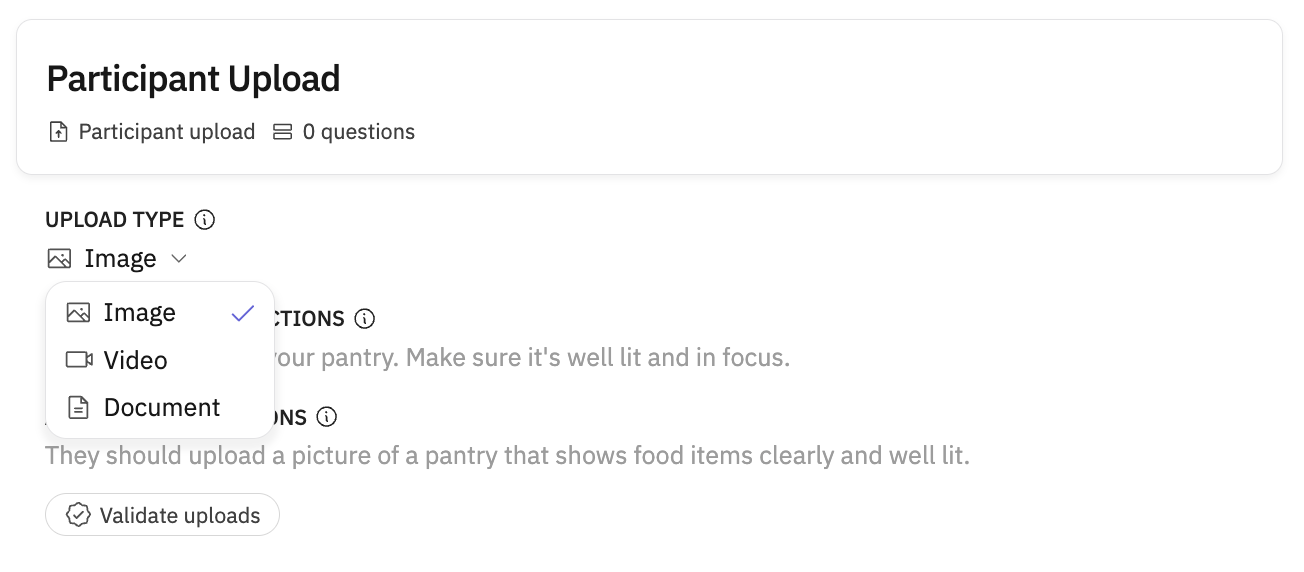
What file formats are accepted?
You can upload the following as a stimulus:
Image files - either PNG or JPEG
Video files - MP4
Document files - PDF or DOCX
Audio files - Save audio as an MP4 with a blank or placeholder image
Image stimulus uploads are limited to 20MB. Video stimulus uploads can be up to 2GB per file. Large files may take slightly longer to upload.
A few things to keep in mind...
Excel and PowerPoint files are not supported; if you have content in those formats, adapt and export it to PDF.
Be sure to check the resolution when testing your guide to confirm the image/ video quality is high
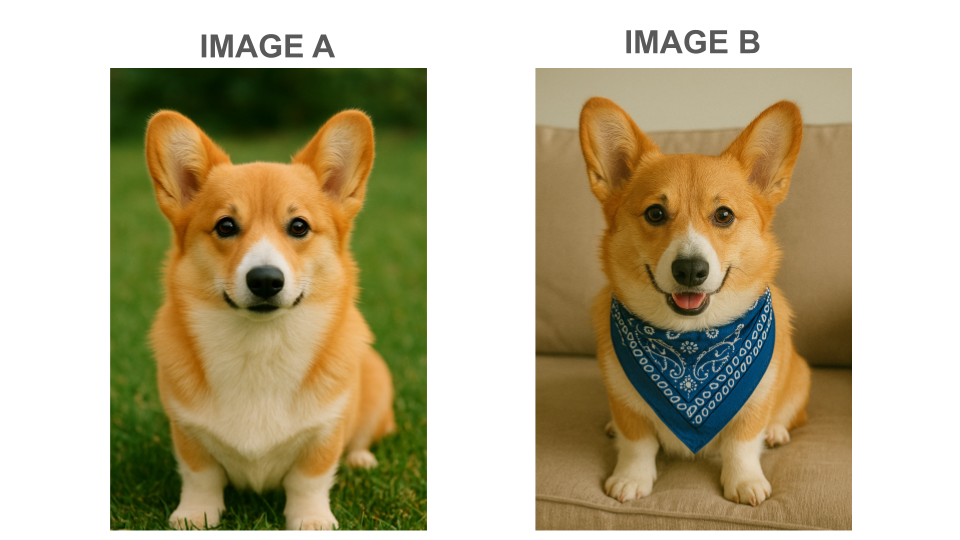
Visibly label content and options - for example, if you are getting feedback on 6 different products, label those products with titles like "CONCEPT A, CONCEPT B" or "IMAGE 1, IMAGE 2", etc. (see an example below)
Set Timer for Stimulus
Sometimes, you may want to limit a participant's exposure to a stimulus. For example, when capturing a first reaction to an ad concept, you can mimic the live experience by displaying the ad for only a few seconds.
Set a timer for how long participants will be able to view your stimulus. If you leave the field blank, the stimulus will remain on the screen for the duration of that question.
🚨 Note: Timed stimulus display is only available for images, and is not available for video, URL, and any mobile study types.
Example of stimulus testing set-up
For example, let's say you're a pet company considering running an ad to support a donation campaign. You want to get feedback on which dog image is more compelling from two images.
For each image, you could set up a guide section with the following questions.
What are your initial reactions to this image? What do you like or dislike?
What do you imagine this dog's life is like? Who do they live with? What do they enjoy doing?
On a scale of 1 to 5 where 5 is Extremely Cute, how cute would you rate this corgi?
For each of those questions, you can upload the relevant image as a stimulus.
Once you've added stimulus files, they will be available for reference to add on new questions. Double check you've selected the relevant stimulus for each question.
After getting feedback on each individual image, it's also common to want to get feedback on both images -
For example, you could do a multiple choice question where you ask which image they prefer (A or B).
Alternatively, if you have many different options, you could try a stack ranking question or a "select up to X" multiple choice
For this sort of comparison, people often put together a slide that labels each image, and then you can export the slide as a PNG or JPEG file for uploading.
Participant perspective
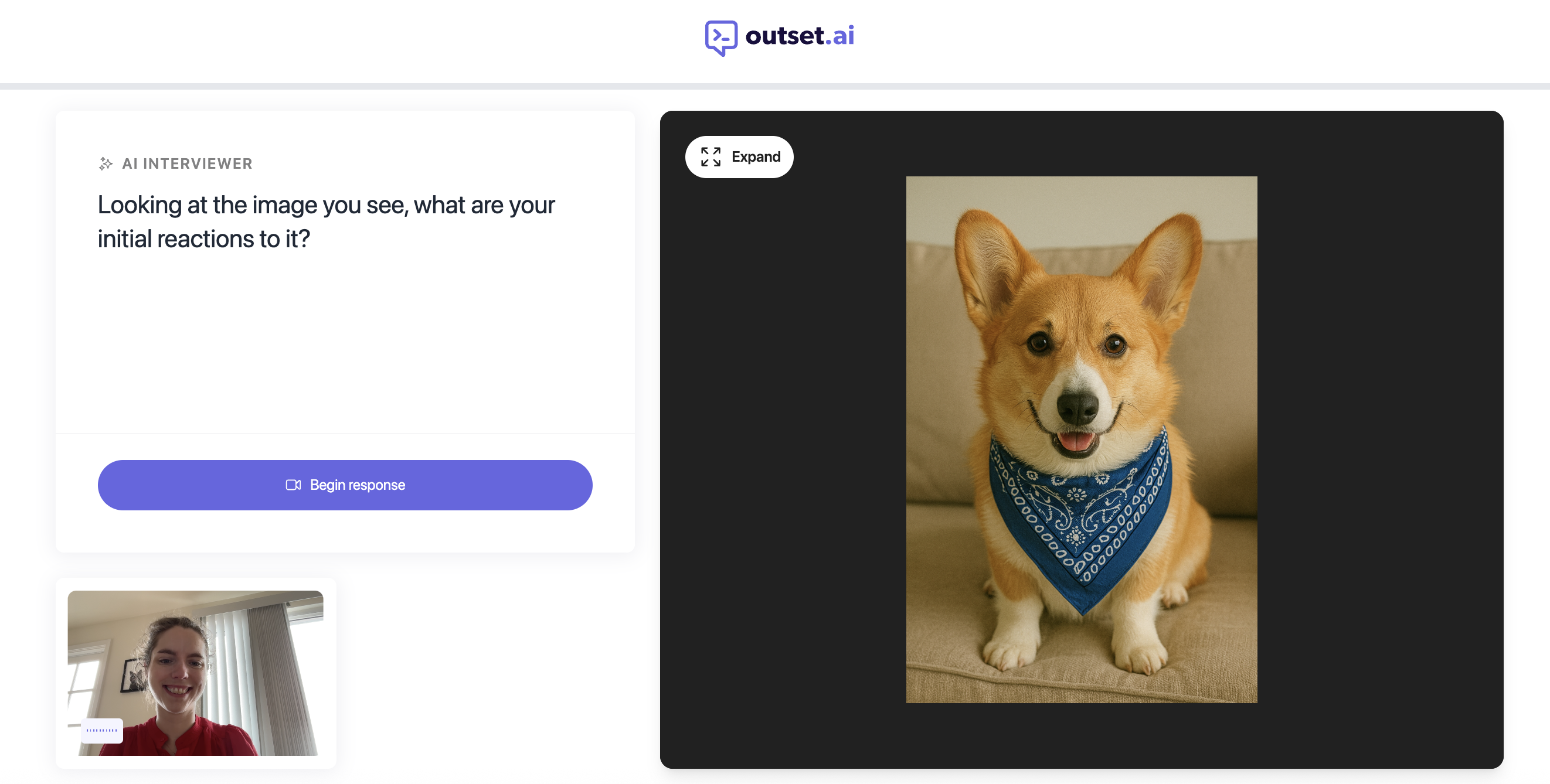
When the participant is taking the interview, they will see the stimulus to the right of the interview question for a desktop/laptop-based question.
They can click "Expand" to zoom in and view the image more closely.
Similarly, the stimulus is also available for participants on mobile phone - the participant will first see the interviewer question, and then click "View content" to view the stimulus.
Always test the interview yourself ahead of launch to review how the stimulus looks to the participant.
Common FAQ about adding a Stimulus
Are stimulus protected from download?
Yes. Outset includes several built-in measures to help prevent participants from downloading stimulus content during a study.
These protections include:
Blocking the right-click context menu on stimulus images
Preventing images from being dragged out of the interface to download them
Disabling video downloads for uploaded stimulus videos
These protections help reduce casual downloading of research materials during a session. However, as with any online platform, it is still possible for participants to capture content using external workarounds (for example, taking a photo of their screen or recording with another device). Because of this, researchers should avoid showing highly sensitive or confidential materials unless appropriate precautions are taken.
What is the limit on file size for stimulus uploads?
Image stimulus uploads: 20MB max, JPEG and PNG only
Video stimulus uploads: 2GB per file max
Document uploads: 20MB max, Docx and PDF only
Researcher video uploads (BYOD): 20 GiB total per survey, max 20 files