Typed Response Validation
Last updated: May 21, 2026
Response validation helps ensure participants provide useful answers in typed response questions before moving forward. You can require responses to follow a specific format, like a valid URL, include certain keywords, or both.
This is especially helpful when you need structured or high-quality inputs for analysis.
Setting Up Response Validation
Open the study set-up panel
Scroll down to the guide section
Select add content, then select typed response
Toggle the question settings to access the available options.
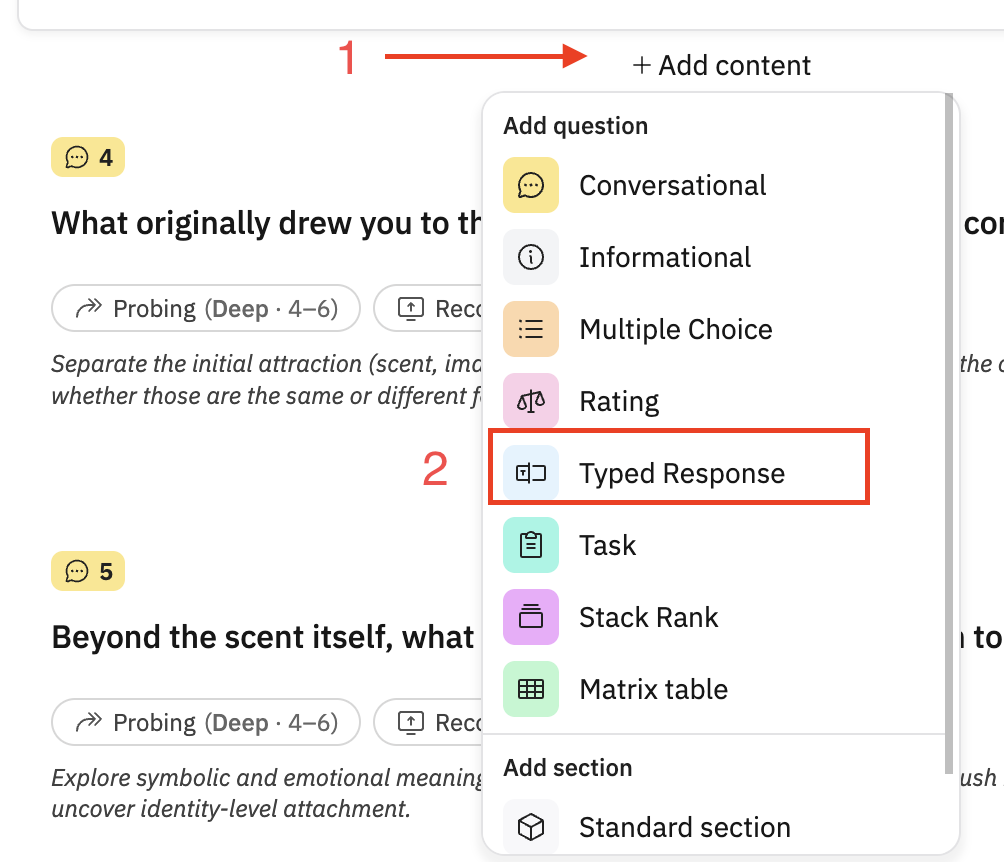
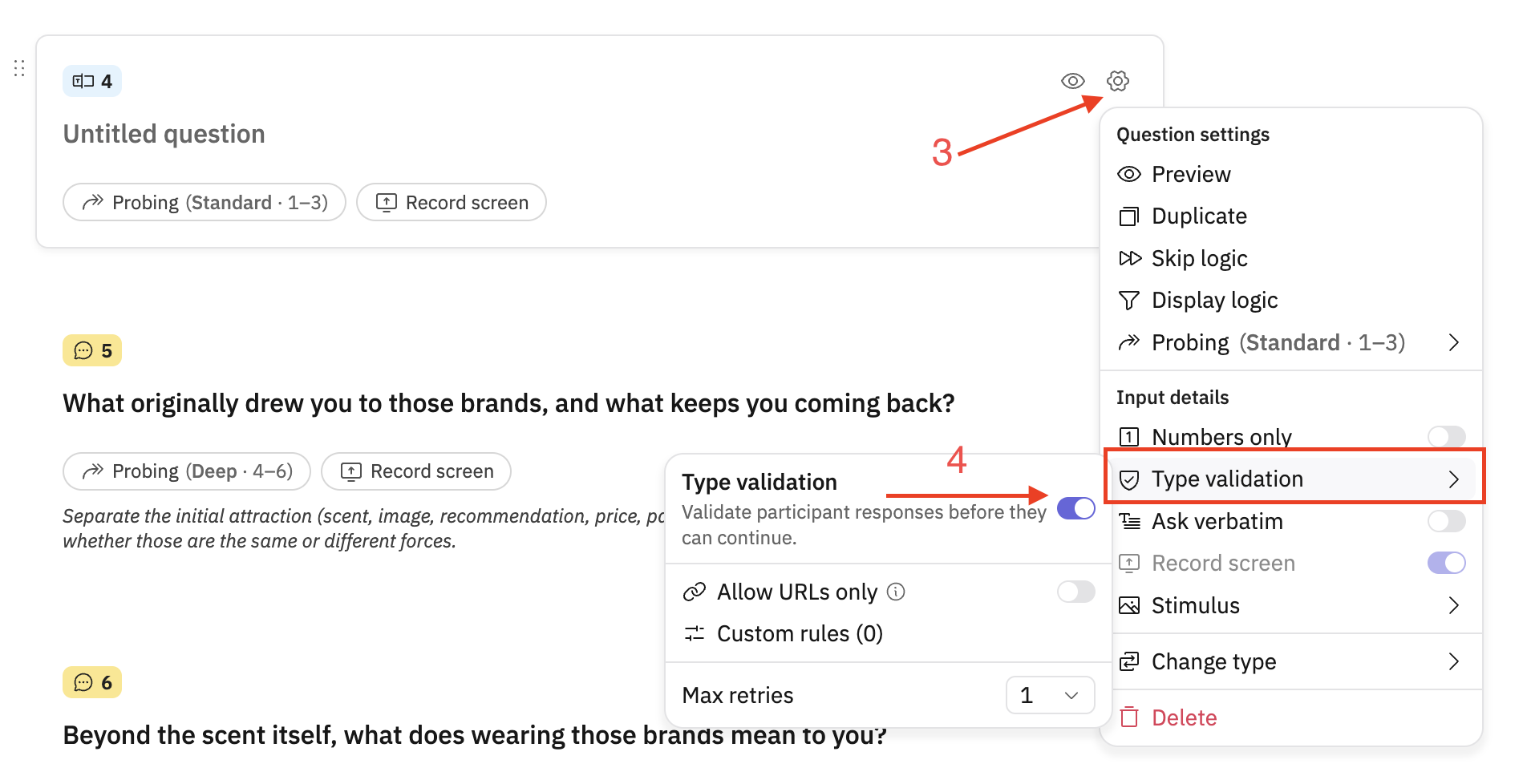
Only typed response questions support validation.
Validation Options
1. Validate as URL
Enable this option to require responses to be a valid absolute URL.
To pass validation, the response must:
Include a scheme (for example, https://)
Contain no spaces
This is useful when asking for links to websites, profiles, or specific pages.
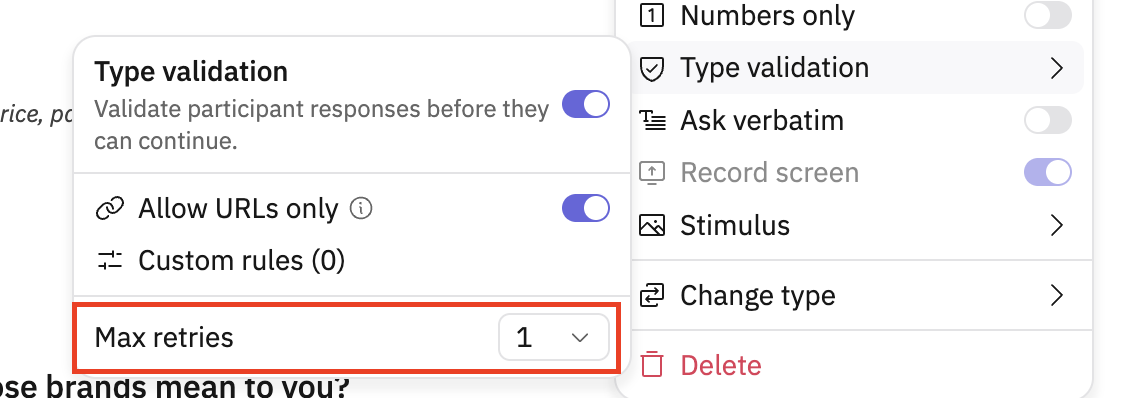
2. Retry Attempts (1–5)
This setting controls how many times a participant can retry after submitting an invalid response.
If set to 3, the participant gets three chances to correct their answer.
On the fourth attempt, their response is accepted even if it doesn’t meet the validation rules.
This helps balance data quality with participant experience.
3. Custom Rules
Custom rules let you require specific keywords or phrases in a response.
Matching is case-insensitive
The keyword just needs to appear anywhere in the response
How Are Rules Structured?
Rules are organized into groups, which gives you flexibility:
Within a group
AND → all keywords must appear
OR → at least one keyword must appear
Between groups
AND → all groups must pass
OR → at least one group must pass
A live preview shows a summary of your setup, making it easier to confirm your logic.
You can create up to 10 total rules across all groups.
Example Setups
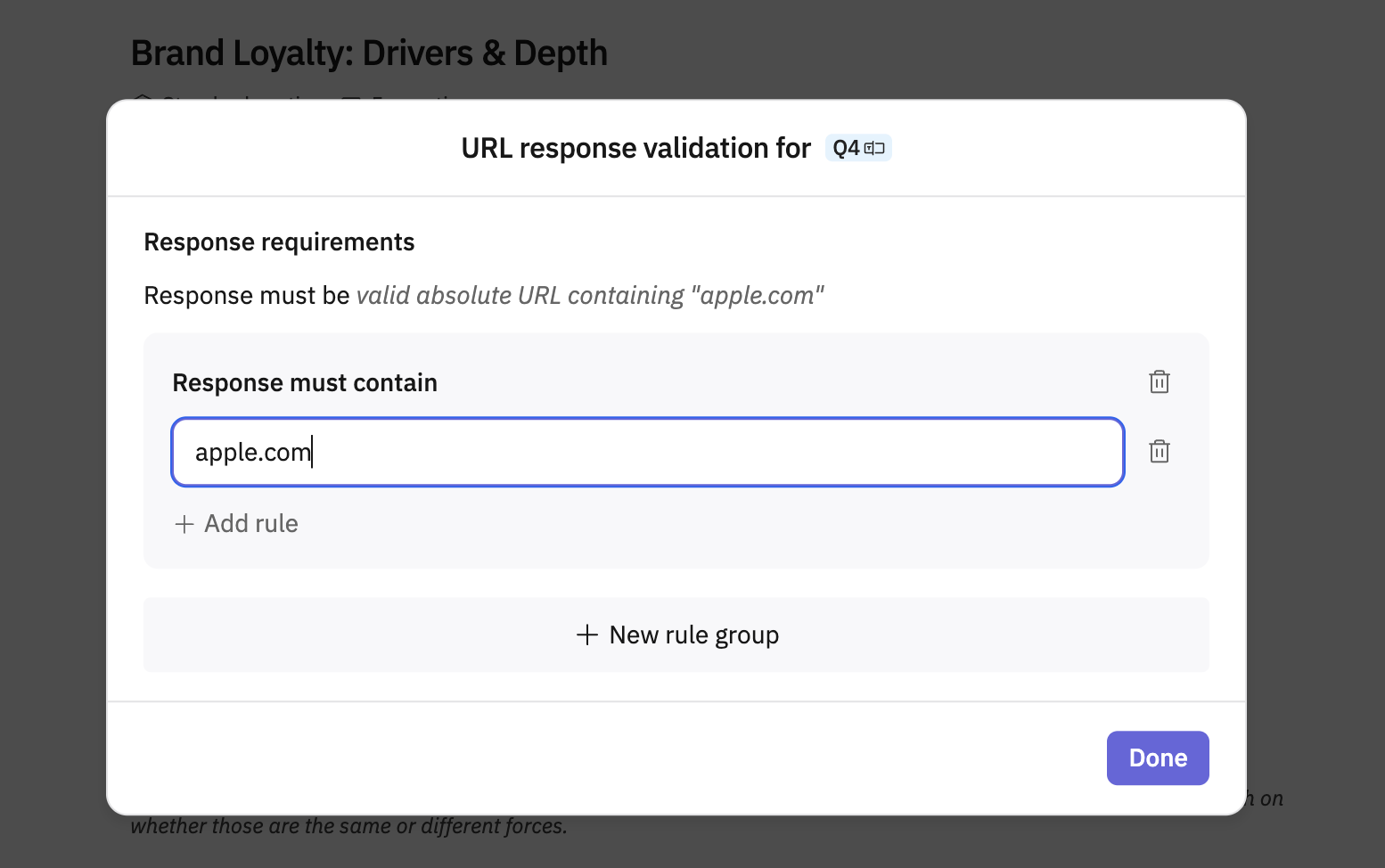
Require a specific domain in a URL
Enable URL validation
Add a keyword rule like
example.com
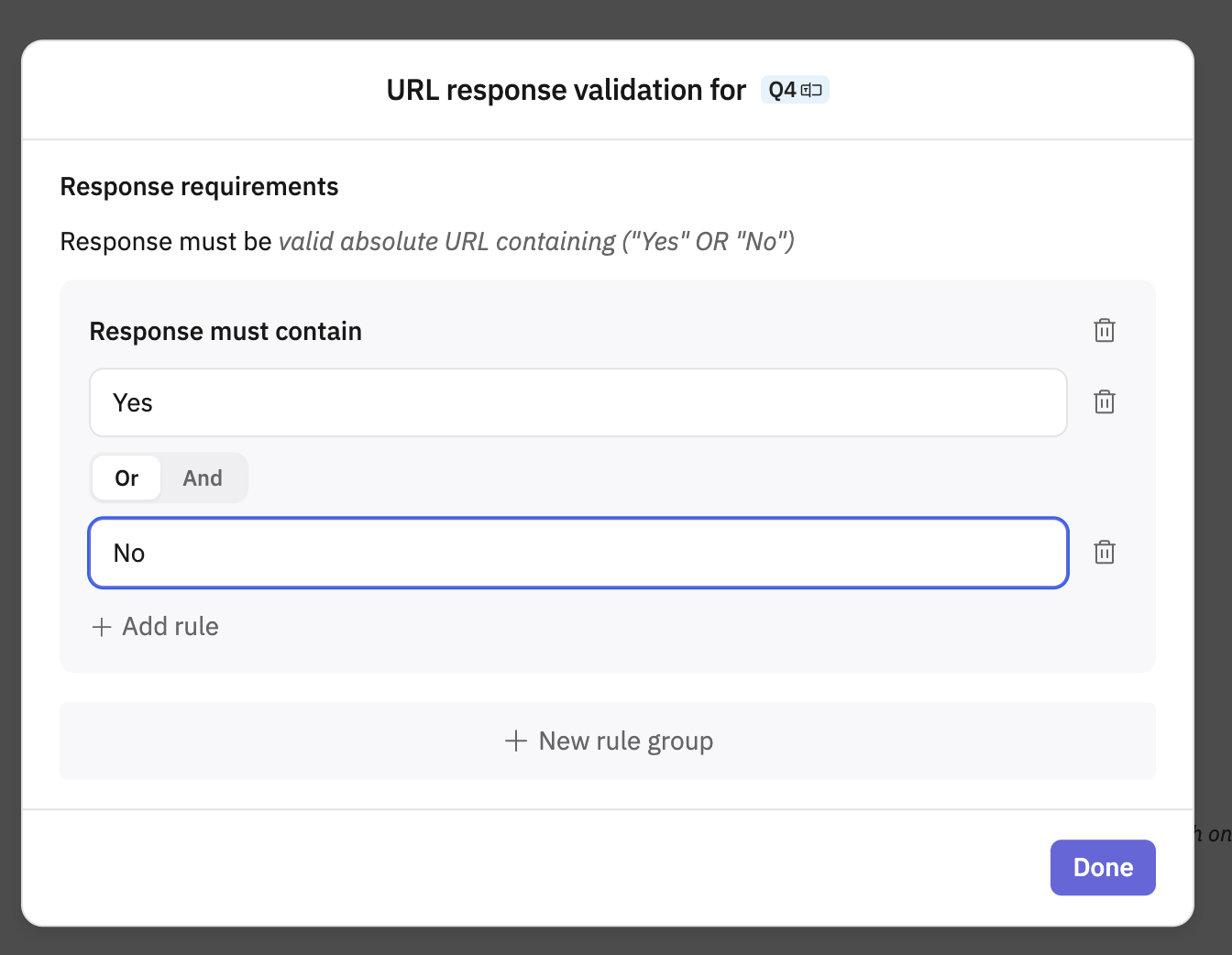
Accept either “yes” or “no”
One group with two rules
Combine with OR
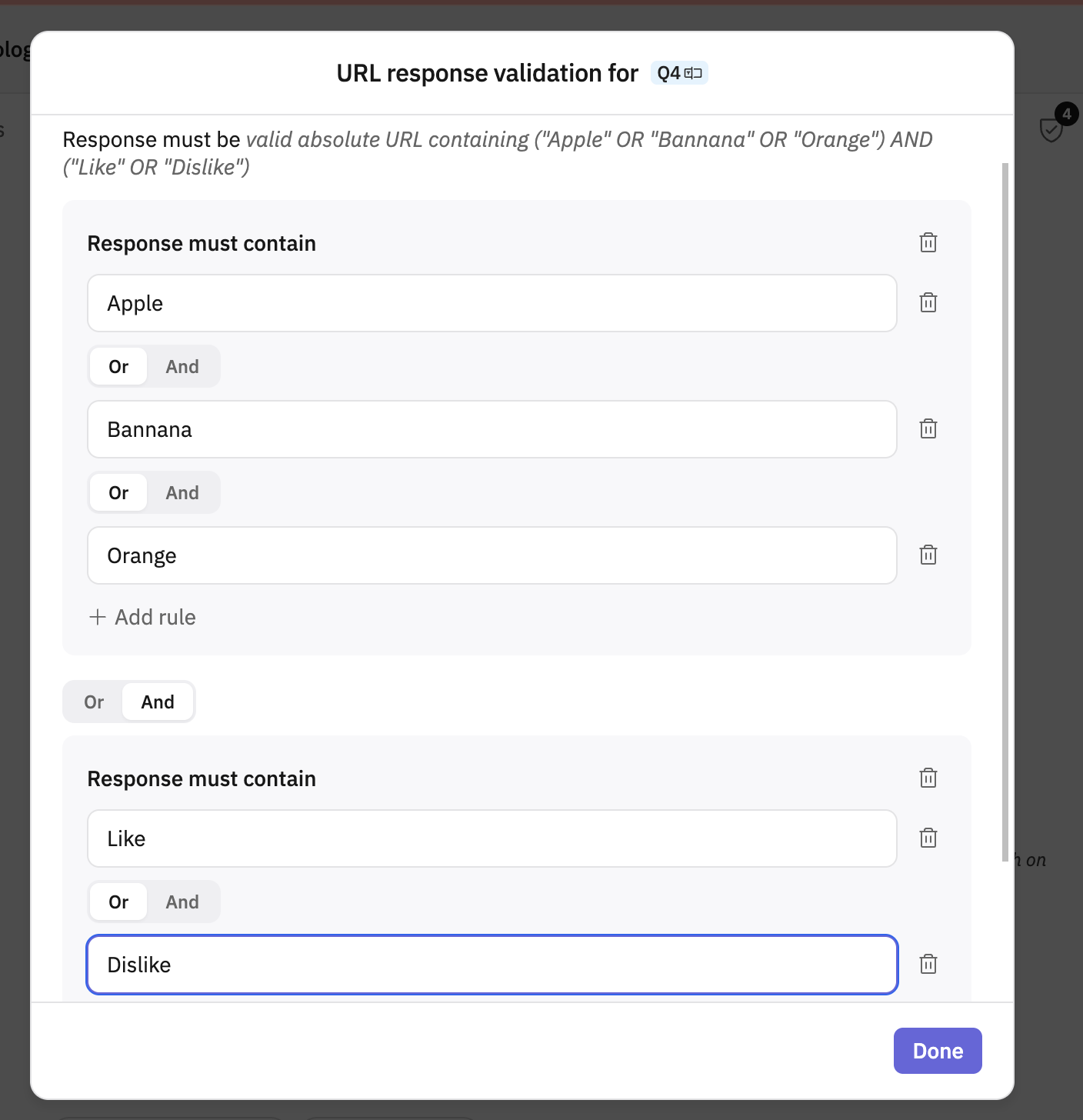
Require both a category and sentiment
Group 1 (OR): “apple”, “banana”, “orange”
Group 2 (OR): “like”, “dislike”
Combine groups with AND
What Participants Experience
If a response doesn’t meet the validation rules, participants see a clear error message explaining what to fix.
Examples include:
“Please make sure your response includes ‘keyword’ and try again.”
“Please enter a valid absolute URL (scheme required, no spaces) and try again.”
Validation only applies to the initial response. If the AI moderator asks a follow-up question, that response is not validated.
This feature helps you guide participants toward more structured and relevant answers without interrupting the overall flow of the interview.
Hope this helps! If you have any further questions, please reach out to our team at support@outset.ai or via chat.