Using Co-Design in Outset
Last updated: July 30, 2026
🚀 New as of July 2026 🚀
What Co-Design is
Co-Design helps participants turn visual feedback into something concrete. Instead of only saying that a concept feels unclear, too busy, or unconvincing, participants can describe what they would change and react to a revised version generated during the same interview.
Use Co-Design to understand the direction participants want a concept to move in—and why. The generated output is intended to support discussion and reveal preferences. It is not meant to be a production-ready or pixel-perfect design.
When To Use Co-Design
Ads, campaign creative, packaging, and product concepts
Landing-page sections such as a hero, headline, CTA, or benefit hierarchy
Single-screen product interfaces, forms, cards, lists, and grids
Message and value-proposition testing
Focused changes such as adding or removing an element, simplifying a layout, changing emphasis, or adjusting tone
Adding Your Co-Design question
Open your study guide in the guide builder.
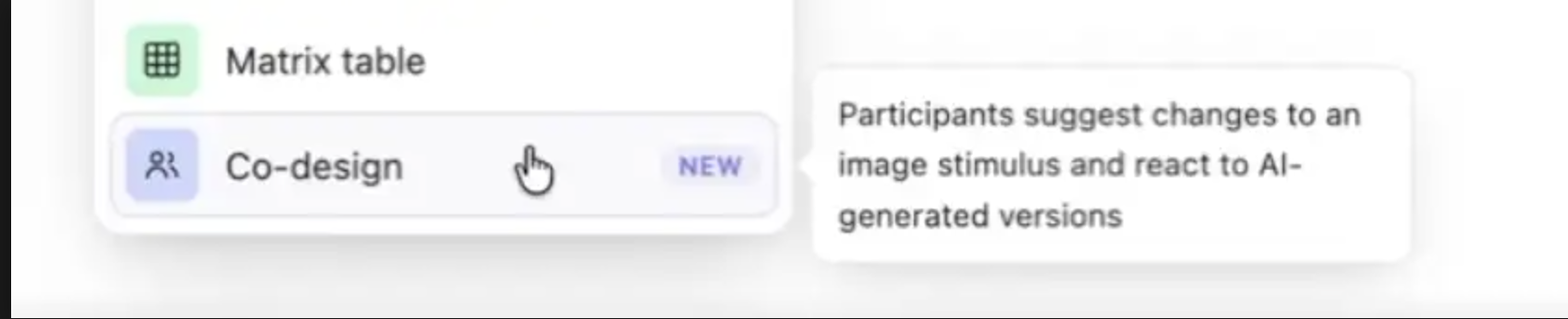
Add a Co-Design question.
Upload one static image stimulus.
Write the question participants should answer.
Choose how many edit attempts each participant can make.
Preview the flow, then publish the study.
Note: Co-Design works with a single static image. If you want to test a Figma design or a website, take a screenshot or save it as an image, then upload that image to Outset as your stimulus.
Participant Experience
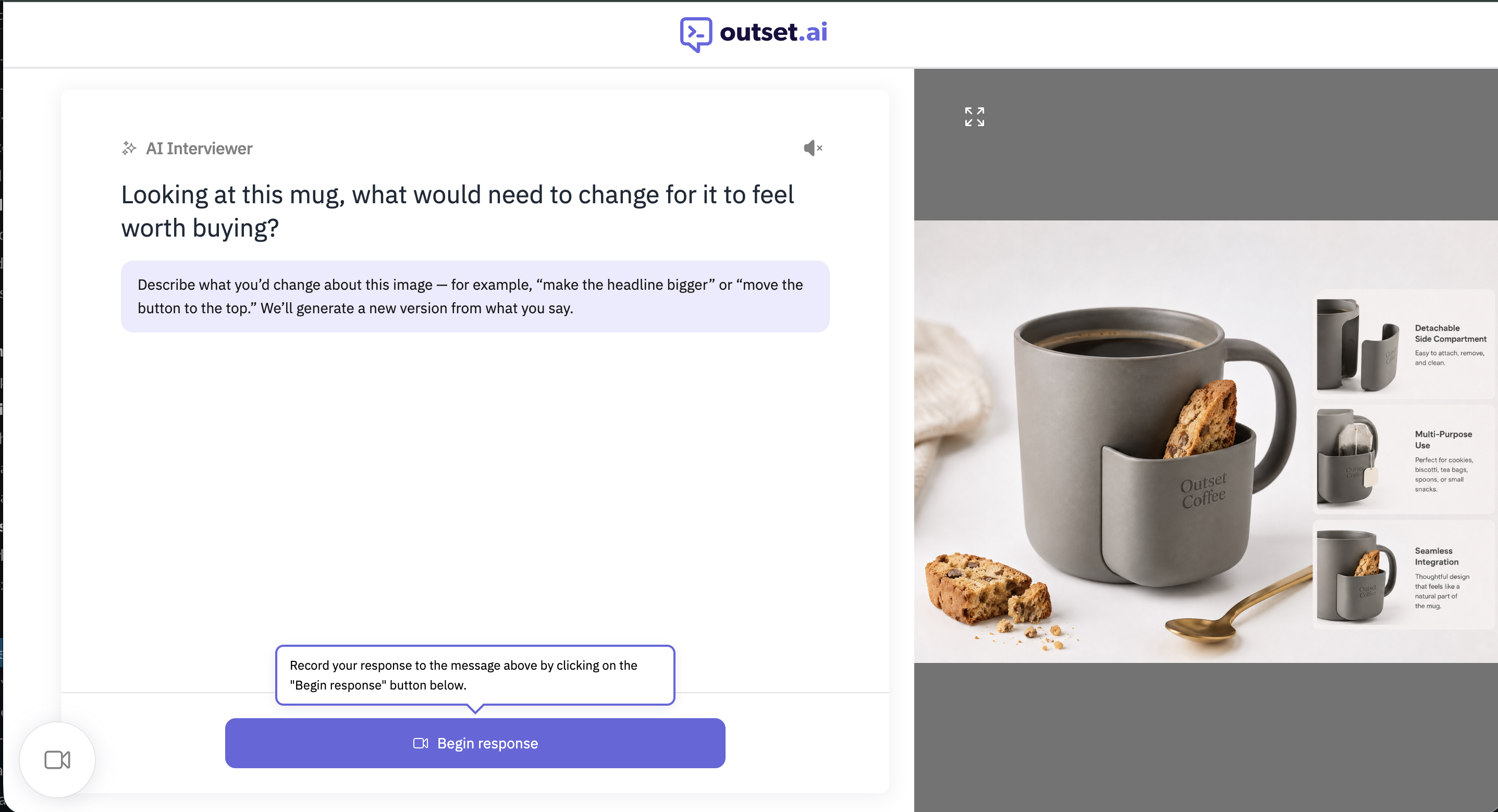
The participant sees the original image and shares an initial reaction.
The moderator asks what they would change.
The participant describes the change in natural language.
Outset generates a revised version.
The participant reacts to whether it reflects what they meant.
If additional attempts are available, they can request another revision.
Researcher Controls & Guardrails
Set guardrails on how many iterations participants can co-design, so each session stays focused and within scope.
If a participant's feedback isn't clear, the AI moderator probes to get more exact feedback on what they are looking for before generating a revision.
Guardrails are in place to keep participants from steering off course while co-designing, so revisions stay tied to the concept and research goal.
Best Practices To Keep In Mind
Make sure your updated stimulus only includes a single concept
Capture the initial reaction before asking for edits.
Ask for concrete changes...keep your instructions clear!
Clarify vague requests before generating.
Probe after every version to understand why the participant made those changes
Treat outputs as directional, not production-ready.
Current limitations
One static image stimulus at a time
No interactive or multi-screen workflows